


Last week I had to factory reset my 12th gen Kindle Paperwhite because of a known bug that I intentionally activated that was causing problems. I decided to use the Kindle in an unregistered state for a while, and I’m learning all kinds of interesting things.
It’s been a long time since I tried to use a Kindle that wasn’t signed in to Amazon, and it turns out there are some advantages to using an unregistered Kindle.
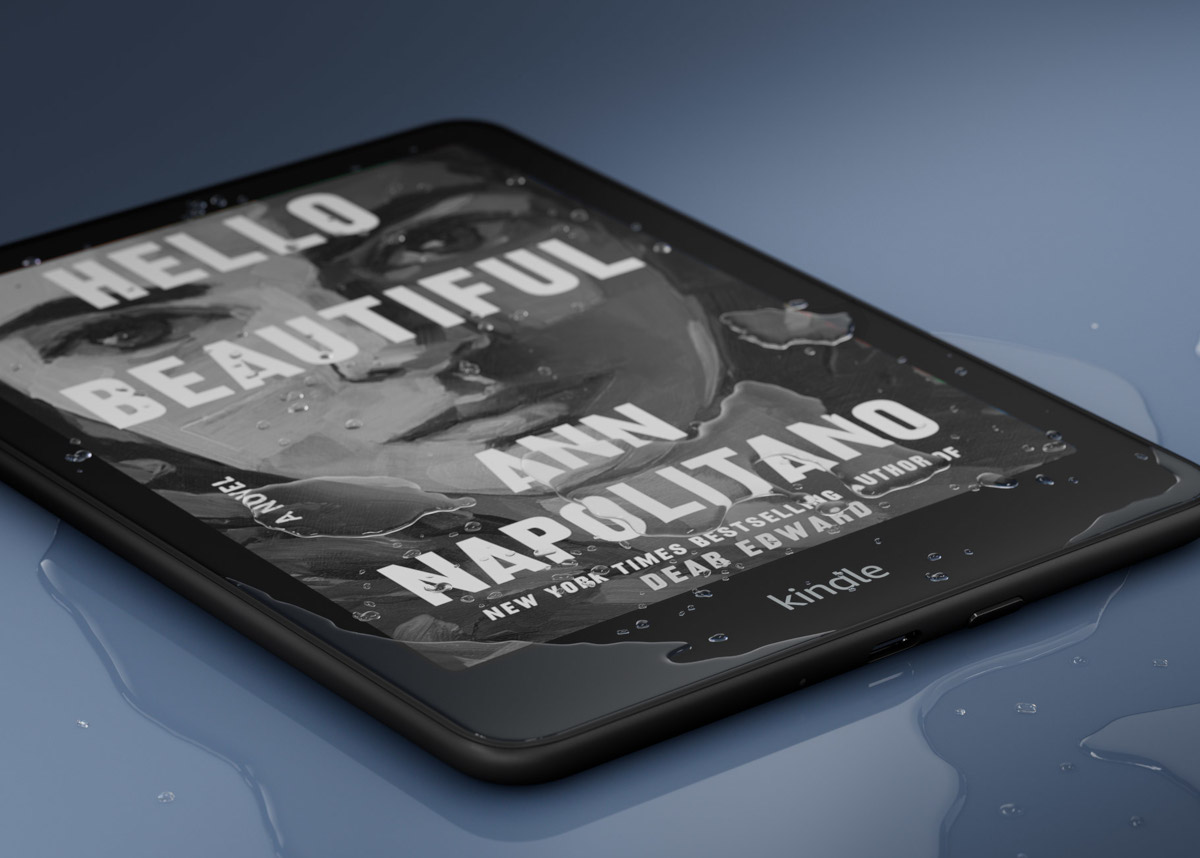
For one, unregistered Kindles don’t show ads on the lockscreen (or homescreen), even if it’s an ad-supported Kindle. I was surprised to find the book cover option under settings, and it actually works when you turn it on—it shows the cover of the book that you’re currently reading while your Kindle is sleeping instead of an advertisement. With it turned off, it shows random images, but still no ads, and you don’t have to swipe the screen to get back to reading with either setting.
There is one big negative to using a Kindle that’s not registered: there’s a box that pops up every single time you access the Library screen that asks you to sign-in. But there isn’t a nag screen while reading so if you stay in your book you don’t have to see it.
I rarely navigate the library list so that’s something I’m willing to put up with in order to get rid of the lockscreen ads. The ads are the number one thing I hate most about Kindles, and the requirement to stare at the ad for a few seconds and then having to swipe the screen to get past it every single time you turn the Kindle on is the worst user experience ever.
Yes, I could pay $20 to get rid of the ads, but I’ve already done that like 5 times before on older Kindles and I’ve soured on the idea since it’s not transferable and I already paid full price for the Kindle anyway. Amazon puts Kindles on sale for more than $20 off all the time so what difference does it make.
Anyway, I’m liking my unregistered Kindle more than I thought I would. I sideloaded some Kindle ebooks using Calibre that I had backed up last year before Amazon removed the download and transfer option, and I added my favorite font (Merriweather) to confirm that custom fonts work too.
The dictionary didn’t work at first because there wasn’t one installed, but I just copied the dictionary folder from one of my other Kindles and now the dictionary works too, and the option to open the full dictionary has returned.
This Kindle is on the latest 5.18.6 software, but some of the changes introduced with the new software have reverted back to how they were before. For instance, the bookmarks are back to how they were previously instead of being mixed in with notes and highlights. The dictionary popup reverted back to the old style as well with the option to open the full dictionary, as noted above.
However, a number of the standard Kindle features don’t work on unregistered Kindles. There’s no vocabulary builder, no syncing, of course, no collections, and Wikipedia and translations don’t work. But most of the standard reading features work fine.
If you want to use your Kindle in an unregistered state it isn’t obvious that you can do so. During the setup process, there’s a step that asks you to sign-in to your Amazon account on the device or using your phone, and there does not appear to be a way to get past that screen. All you have to do is restart your Kindle at this point to bypass the signup screen. Just hold the power button for ~6 seconds and select restart.
Honestly, I didn’t expect an unregistered Kindle to be this useful. The reading experience is still really good. It’s worth trying if you have your ebooks backed up and want to avoid Amazon having control over your Kindle, and it’s a lot easier than jailbreaking.

